Marketing Cloud Personalization, Interaction Studio, or Evergage – But what exactly are they?

Marketing Cloud Personalization

Undoubtedly, one of the most critical terms in modern marketing is personalization. There’s no marketing campaign without personalization, and we achieve this through Marketing Cloud Personalization. By tailoring each interaction with our users to the maximum extent, we make it more effective and strengthen our company’s connection with both existing and potential customers. We utilize the data we collect to gain more insights and provide a better consumer experience. The goal is to deeply understand our customers to deliver the best possible experience.

To do this, we need data because they are what drives the world. They help us comprehend what has happened in the past, what is happening in the present and enable us to act accordingly in the future, whether it’s near or distant. However, they are of no use if they are scattered across various platforms because it complicates the analysis task for creating personalized campaigns.

You may have heard of Interaction Studio before Marketing Cloud Personalization, as it recently underwent a name change to better reflect its amazing capabilities: personalization.
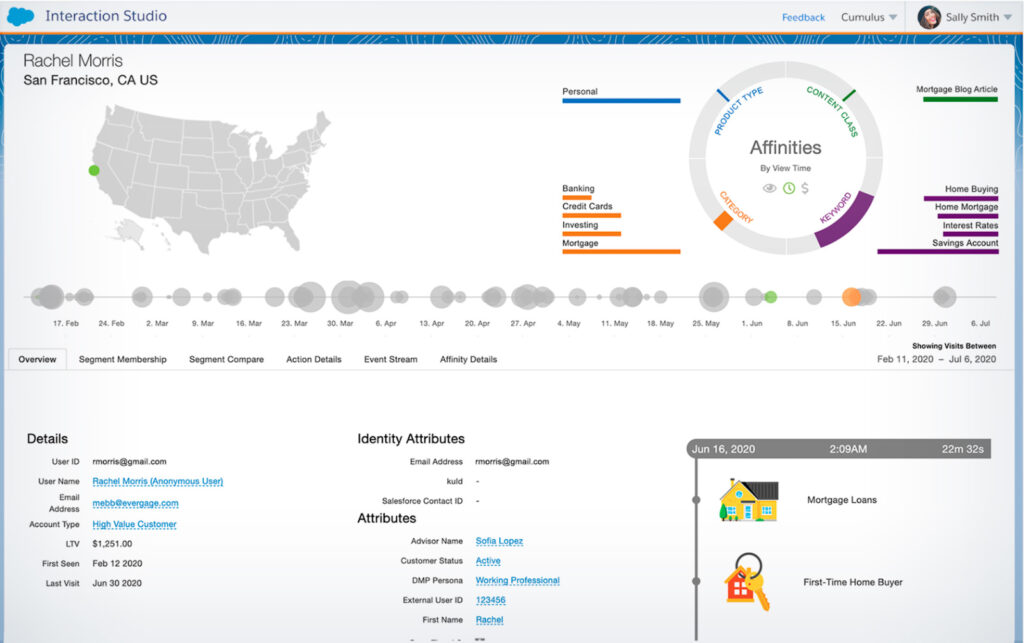
Marketing Cloud Personalization. ShowerThinking

But what exactly is Marketing Cloud Personalization?

It’s a tool found within Marketing Cloud itself, allowing us to enhance the experience this powerful program provides to our company even further.

It offers the opportunity to design and implement one or multiple marketing campaigns from a single tool.
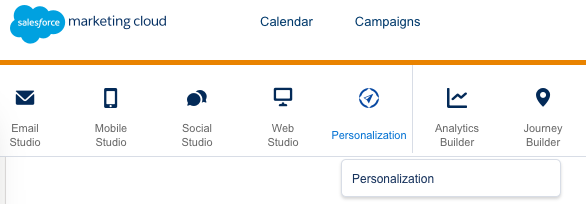
Personalization Marketing Cloud

Since it operates with first-party data, we achieve spectacular and impressive data quality. This allows us to set up campaigns on various platforms, such as web pages, emails, SMS, and more. By doing this, we customize the user experience in real-time, making it unique.

Furthermore, any company looking to add unique value to its operational data can use this tool, designed for that purpose. With two versions (Growth and Premium), users can choose the edition that best fits their business model.
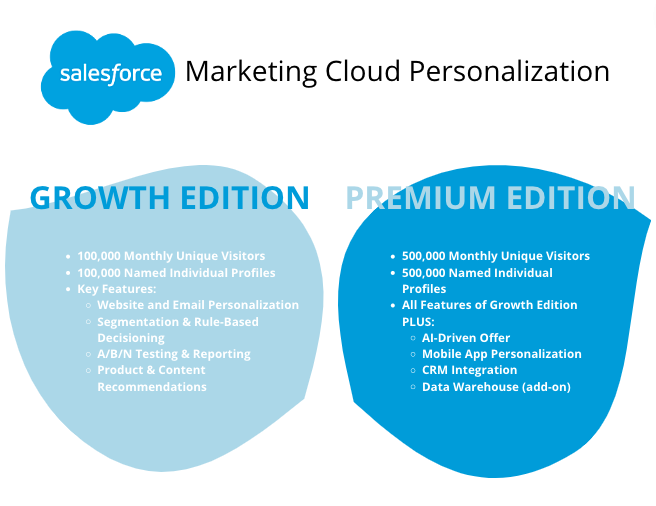
Marketing Cloud Personalization

Marketing Cloud Personalization is packed with features that make the marketing campaigns it creates more comprehensive.

  • First, we can obtain data by syncing with several platforms Marketing Cloud Personalization offers. (for example, Salesforce or Selligent). : “This method ensures users in our CRM are integrated into the tool, starting campaign creation for them.
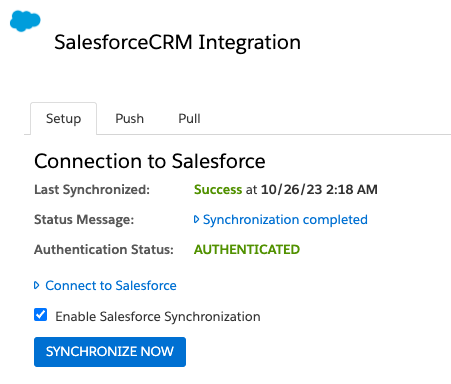
SalesforceCRM Integration
  • Think of Einstein as if it were a recipe. It allows us to personalize the campaign even further through Recipes, Ingredients, and Boosters to make predictions about potential products/items that might interest our customers based on their activity.
  • In addition to this, we have the Guardian, a functionality that continuously monitors the metrics of your website or app and uses that data to identify potential issues.
  • Indeed, Marketing Cloud Personalization is designed to be used as a profiling tool, providing personalization within it, but don’t let that be the limit! We can export our data to Marketing Cloud to use in email or SMS marketing campaigns.
  • How will we test the two types of campaigns? A/B testing analyzes two campaign performances. Success measured with control group.
  • Create surveys for a complete experience. Use results for segmentation.

Example of Personalization:

To better understand the complexity of Marketing Cloud Personalization campaigns, here’s an example:

Imagine our e-commerce selling diverse foods: perishables, international, various sizes.

E-commerce ShowerThinking

Only registered users can make purchases on our e-commerce platform, so we should synchronize them with our CRM (in this case, Salesforce).

After having all this in place, we’ll proceed to create our campaigns. Based on certain attributes that we need to segment, we’ll have a better-distributed audience, and we’ll create three campaigns:

  1. People coming from Data Cloud interested in products originating from the U.S. will see a banner with information about allergens.
  2. Anyone coming from Spain will encounter a pop-up in the middle of the campaign informing them that their orders will include a bonus bottle of olive oil just for buying from there.
  3. Anyone who visits 3 or more pages for the first time will see a pop-up asking them to rate their experience. This information will be exported to Journey Builder to target them with new offers a week later.
    With this approach, we can have three different campaigns directed at market segments, each with its unique characteristics.

With this approach, we can have three different campaigns directed at market segments, each with its unique characteristics.

So, are you ready to dive into Marketing Cloud Personalization?
SMFC Content Builder Guide

Content Builder Header Image

To understand Content Builder well, we must first know what Salesforce Marketing Cloud is. We’re talking about a platform that provides us, within a single location, extensive options and tools to unify communications with customers across multiple channels. Additionally, it allows building a personalized digital experience.

This platform consists of various sub-clouds, primarily Email Studio, Mobile Studio, Social Studio, and Advertising Studio, which allow for multichannel communication with customers through different digital channels.

The strength of Marketing Cloud lies in combining the full potential of customer data collection with the automation of communications across any channel. This is where other sub-clouds come into play, allowing us to work with omnichannel capabilities, including Content Builder, Journey Builder, Automation Studio, Analytics Studio, Salesforce DPM or Audience Studio, and Interaction Studio.

What is Content Builder?

Contact Builder is a multichannel content management tool that consolidates images, documents, and content in one location for use within Marketing Cloud. It provides an easy-to-use “Drag & Drop” interface for organizing, creating, and managing content according to preferences.

Contact Builder is designed for large companies that require highly structured organization and shared resources managed by a large number of people. It also necessitates a high level of review and compartmentalization when creating publications and content.

Folders – How to Create and Where to Find Them?

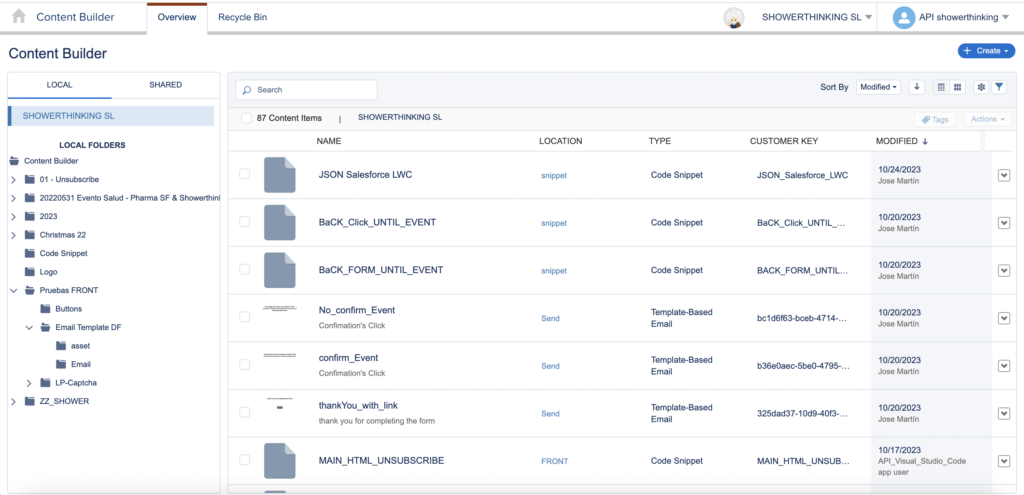
As mentioned earlier, Content Builder allows quick and easy organization of content, with intuitive search capabilities. Upon entering the tool, you can view all the content stored in your Salesforce Marketing Cloud account, with various filters and tools to segment folders.

Content Builder Folders

To easily find content without complicating things, consider the following tips:

Click on “Content” to navigate through folders, which are organized alphabetically. It’s recommended to use subfolders, managing content numerically before transitioning to the campaign name.

Use Filters based on existing criteria in categories such as:

  • Types (e.g., images or text)
  • Tags (applied to Marketing Cloud files)
  • Owners.


Use the search function by entering keywords instead of the full file name, providing information from categories like Content, Name, and Content in files. To classify content by field, select a field name. To view different results between contextual information and content, choose between list or thumbnail views.

  • Content
  • Name
  • Content in archives

Content Creation Tools:

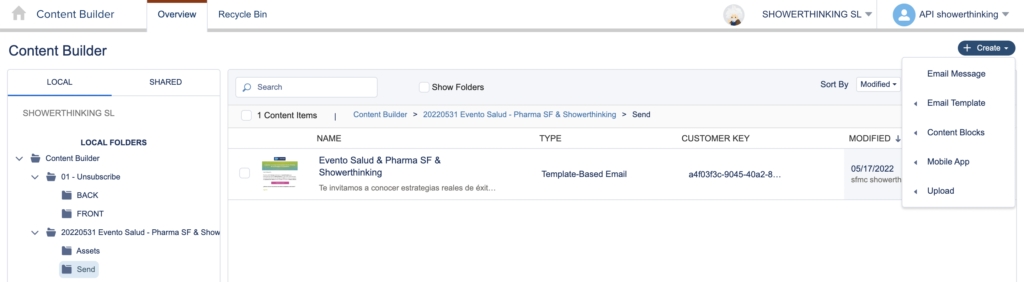
When creating a campaign and designing content, Content Builder offers a catalog of options to design from scratch or reuse old resources for layout. These tools connect with Email Studio, enabling the linking of various creatives when launching campaigns.

Content Builder Content Creation Tools

These tools include Email Message, Email Template, Content Blocks, and Mobile App.

Email Message: Create new emails in various ways, using a pre-existing template, pasting HTML code, or using AMP email (offering real-time interactive data and content). Additionally, you can reuse previously created emails.

Email Template: Templates create design models to save and manage for use within emails in future campaigns. Note that templates cannot be sent, and they can only be created by pasting HTML code or reusing an existing template.

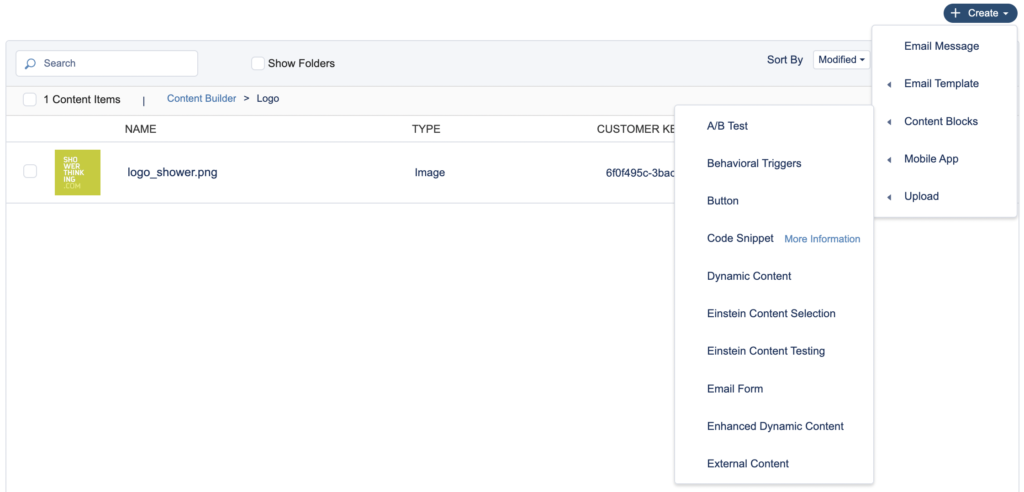
Content Blocks: Content Builder not only allows the creation of emails and layouts but also content blocks and forms. These elements can be injected into emails and campaigns as needed, stored in different folders generated.

Content Builder Layout Mobile App

Here are some key content creation tools:

  • Layout: Create content blocks with images, text, buttons, interlinked to form content structures.
  • Image: Insert image formats such as JPEG, PNG, GIF, and AMPscript.
  • Freeform Content: Add text, links, and images to any layout.
  • HTML Content: Paste or upload HTML code into Content Builder blocks.
  • Dynamic Content: Design content specifically for a specific audience, customizing content attributes.
  • A/B Test Content: Create two different content areas for testing to determine which performs better, tracking results.
  • Button Block: Create buttons (CTAs) to be inserted into campaign emails.

Mobile App: A tool designed for creating exclusive content for mobile users in SMS format. It also includes in-app messages with layouts specifically designed for mobile rendering.

Conclusion

In conclusion, Content Builder is a fundamental pillar of Salesforce Marketing Cloud. The demand for content generation requires well-categorized materials organized within folder structures. Understanding all the tools available in Content Builder facilitates content creation, providing an advantage when launching campaigns.

At ShowerThinking, we hope this guide has helped you better understand the functionality of this tool and serves as a starting point for delving deeper and expanding your knowledge.

WhatsApp in Salesforce Marketing Cloud

WhatsApp in Marketing Cloud. ShowerThinking
Salesforce Marketing Cloud offers personalized email marketing campaigns, with the option of instant messaging through WhatsApp. Here are some key aspects to consider when using WhatsApp in Marketing Cloud.

WhatsApp in Marketing Cloud

Many marketing and sales departments are considering exploring WhatsApp as an additional communication channel with their customers as part of their strategy.

This is a natural progression as consumers are increasingly accustomed to interacting with different communication channels and consuming content in a personalized and medium-specific manner.

However, when a marketing department considers incorporating WhatsApp into its communication strategy, many questions arise: Is it too intrusive? What type of communication can I send to my customers? What are the most common use cases? What limitations exist? Can it be integrated with the technology I currently have?

In this article, you will find answers to all these questions that resonate in the mind of a marketer and may be hindering them from taking the next step.

Where do I start?

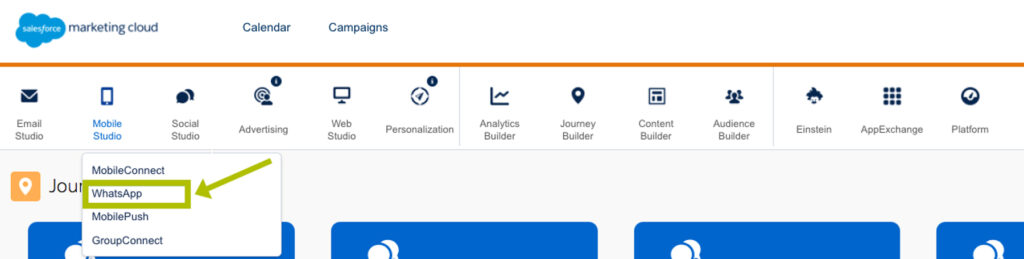
Within Mobile Studio, it is essential to have the WhatsApp option enabled.
Mobile Studio WhatsApp. ShowerThinking
If this option does not appear, you should contact your Salesforce representative or seek assistance from a Salesforce consulting partner, such as ShowerThinking, for guidance. Once the module is active, access the account settings. It’s important to note that you need a WhatsApp Business account, which also needs to be configured. Additionally, because Facebook (Meta) owns WhatsApp, you must properly configure your Facebook Business account. If all of this just feels like a tongue twister, you can visit the Meta link on account settings for more information.

I have it configured, what's next?

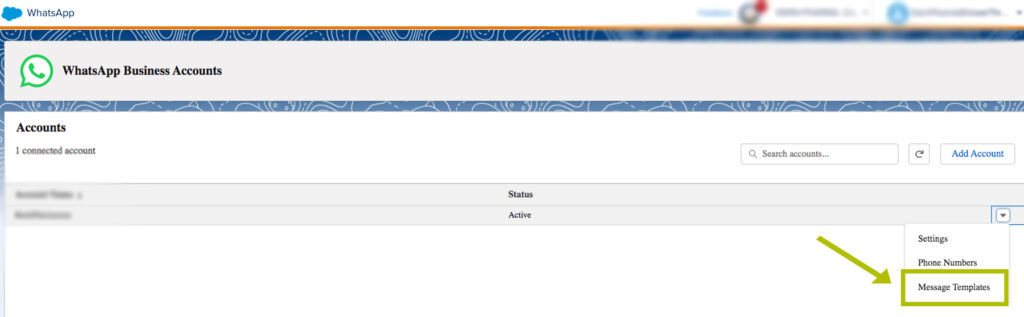
The next step is for you to create templates. If you’re familiar with launching advertising campaigns on Facebook, you know that Meta reviews and approves all ads. The same process applies to WhatsApp.

You should first create a template with the message you want to send. Do this through the ‘Message Templates’ option within Marketing Cloud.

Whatsapp Template. ShowerThinking

Since creating templates involves some peculiarities, you can visit this link where Meta provides all the information needed to create message templates for a WhatsApp Business account.

Content Builder

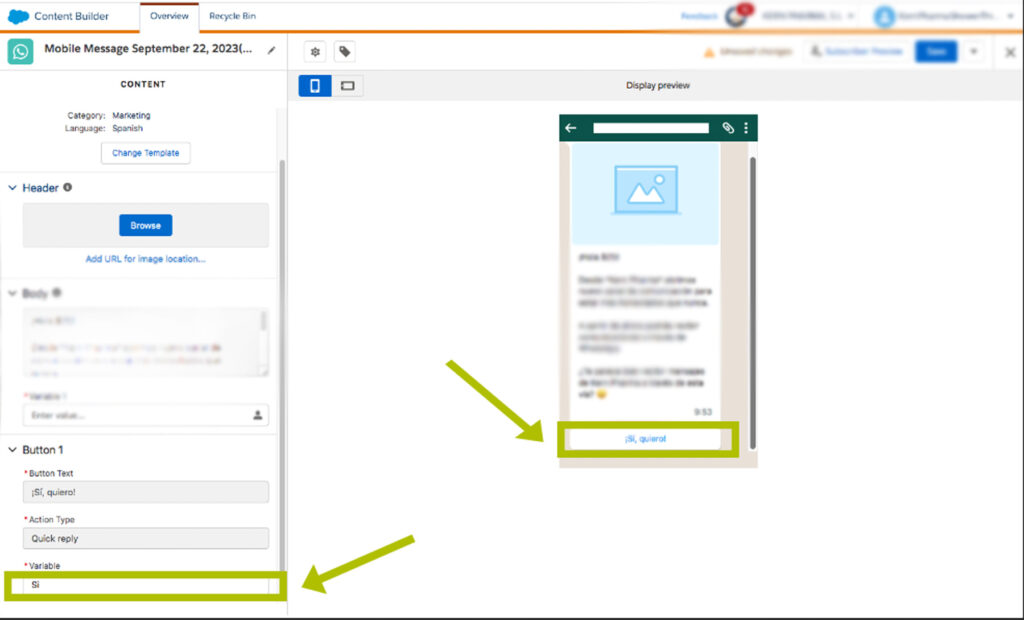
Once the template is approved (it usually takes between 24/48 hours), you will enter Content Builder to access it. Here you can preview, configure variables, and make small edits.

Variable. ShowerThinking
The use of variables is what makes WhatsApp service interesting. Consequently, we can set up automatic responses based on the user’s response. In this regard, it is advisable to offer the client closed options (Yes/No) to configure the most accurate automatic response possible.

Contact Builder

On the other hand, Contact Builder generates our audience. Since it’s a new communication channel, you need to consider the process and consents. You can visit this Meta link on Best Practices for WhatsApp consents.

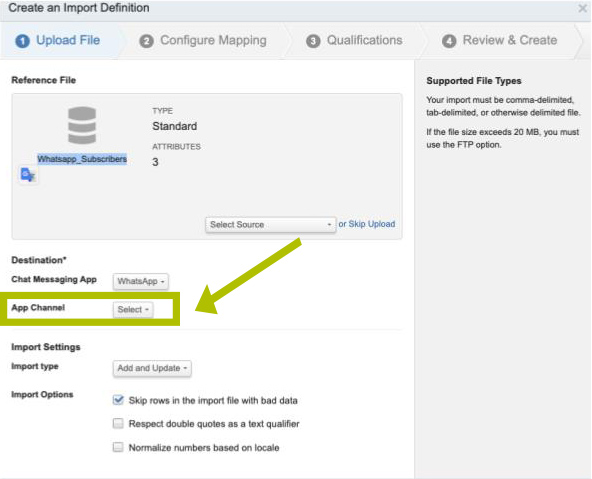
When importing our database, in the APP Channel section, select “WhatsApp”. This confirms to Marketing Cloud that these contacts have consented to being contacted through the WhatsApp channel.

App Channel. SHowerThinking

Journey Builder

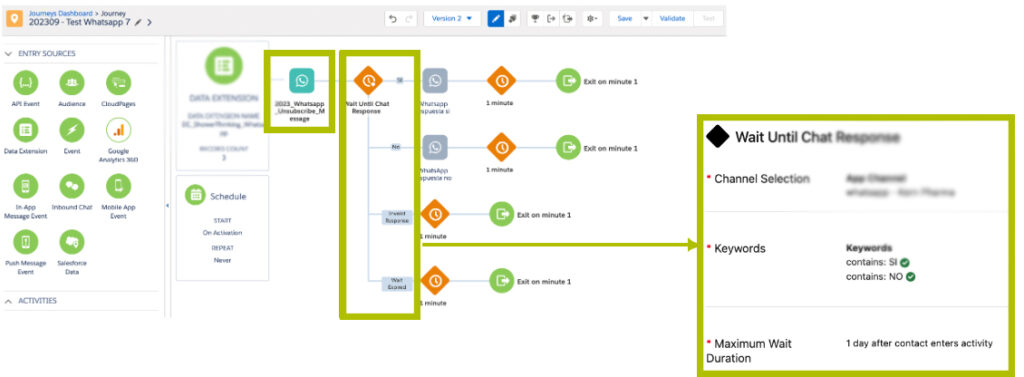
Final step is the configuration of our delivery. Managed through Journey Builder, from the input audience to responses based on the variables configured in the template from Content Builder.

This is what is truly interesting; we can create flows based on immediate responses from our clients. Additionally, we can set up a series of responses in case the client spontaneously communicates with us.

Journey Builder Whatsapp. ShowerThinking

Main use cases

And finally, we are going to share with you the main use cases that we are working on with our clients so that they can serve as inspiration for you to apply them to your business.

  • Personalized offers: Who hasn’t received a percentage discount for their next purchase via WhatsApp? It’s one of the most common uses. Thanks to having all the data within the Salesforce ecosystem, we can use it to send personalized offers.
  • Order confirmations: If you have an e-commerce business and want your customer to instantly receive confirmation of their order, WhatsApp in Salesforce Marketing Cloud allows you to do that. A way to improve the post-sales experience for our customers.
  • Communications to the sales network: If you manage sales teams or are part of one, you know that the company phone is one of their main tools. Why not send everyone a message via WhatsApp informing them of the time of the next team meeting? “I didn’t read the email” will no longer be an excuse.
  • Customer support: Another communication channel your company can offer. It can be a quick access point for the customer, generating a very positive experience. The use of WhatsApp is integrated into our daily lives. Being able to use it directly with companies creates a sense of accessibility and closeness to the customer.
  • Appointment/meeting reminders: WhatsApp is an ideal communication channel to remind our clients or suppliers of upcoming appointments or meetings. It’s a very common and well-received use case among users.

In summary, the integration of WhatsApp into Salesforce Marketing Cloud enhances marketing and sales strategies. Through this powerful combination you can improve communication and customer experience.

Modular Content in Salesforce Marketing Cloud

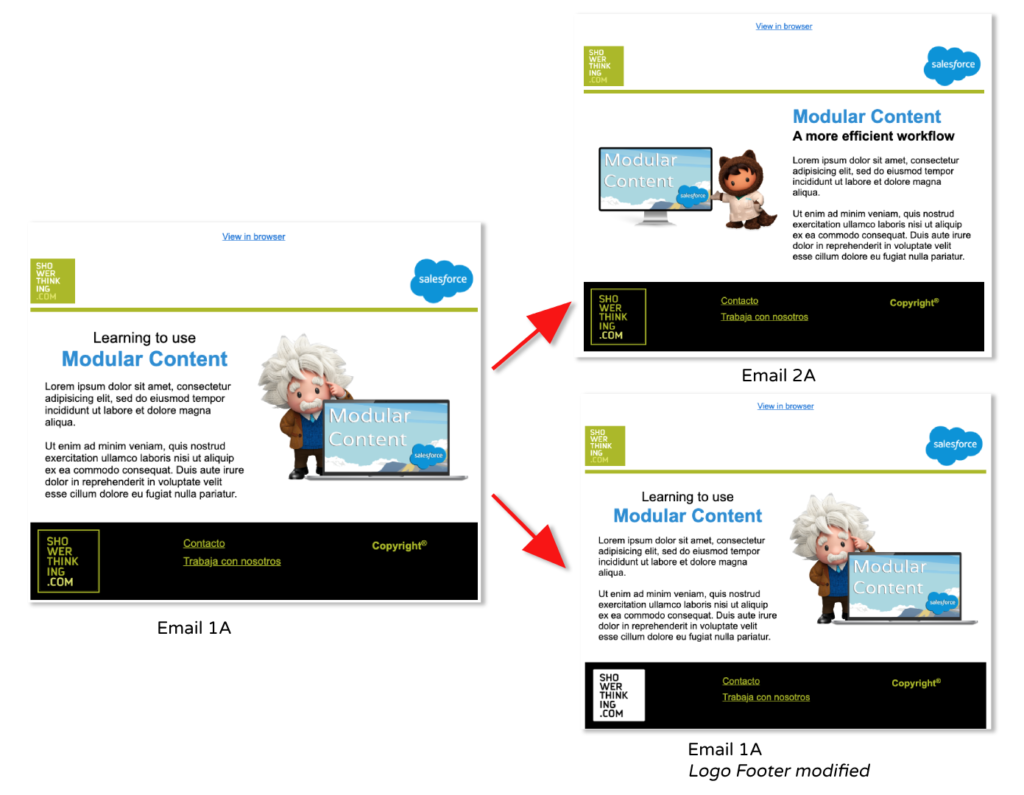
Modular content.

Do your customers launch similar campaigns in several countries simultaneously? Do they ask for a footer modification in a 14-email campaign? Are you tired of replicating content and multiplying your workload when changes are requested? Salesforce Marketing Cloud has the solution: modular content creation.

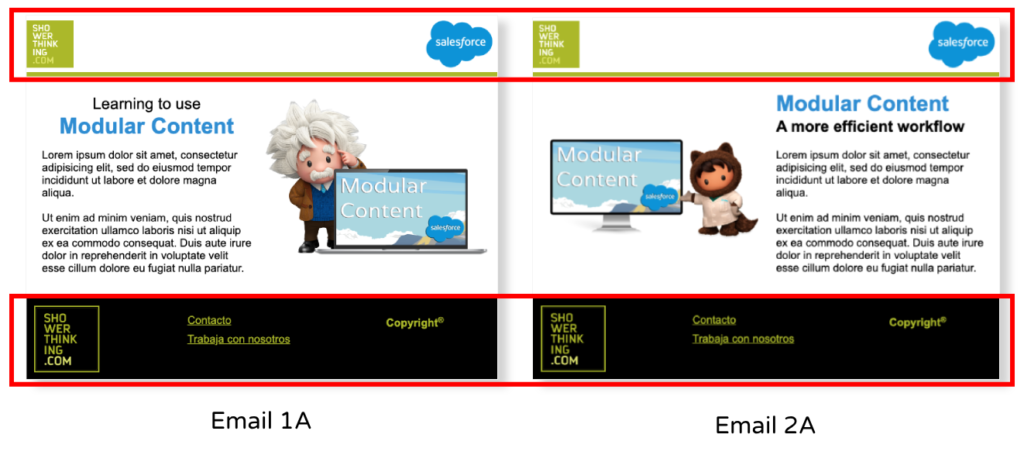
In today’s digital marketing world, companies employ distinctive elements that characterize their brand: logos, taglines and branding in general. In turn, campaigns often use common elements to create cohesion between the different emails that compose it, sharing their header images, footer, etc. all framed within similar layouts.

Linear development of multiple campaigns can be costly in terms of time and effort, but modular development allows multiple projects to run in parallel and changes to be implemented in bulk.

Starting from the beginning

To take full advantage on this system, the first step is to identify the common elements in our emails and then save them as separate code blocks within Content Builder.

Common elements. SFMC Layouts.

Insertion VS Indexation

Salesforce Marketing Cloud offers two ways to insert previously saved code blocks or layouts: inserting the content from the Content tab or indexing it using AMPscript.

When we insert content, SFMC creates a copy of the previously saved Content Builder block, therefore, the changes applied will not be reflected in the original block nor in the other mails or Cloudpages in which this block appears.

However, when we use indexing, SFMC creates a reference to the original block, and the changes we make to it are applied to all emails and CloudPages that reference that content.

Therefore, for the purpose that concerns us, we will use content indexing, since it is the method that enables the generation of modular content in Marketing Cloud.

Content indexing using AMPscript

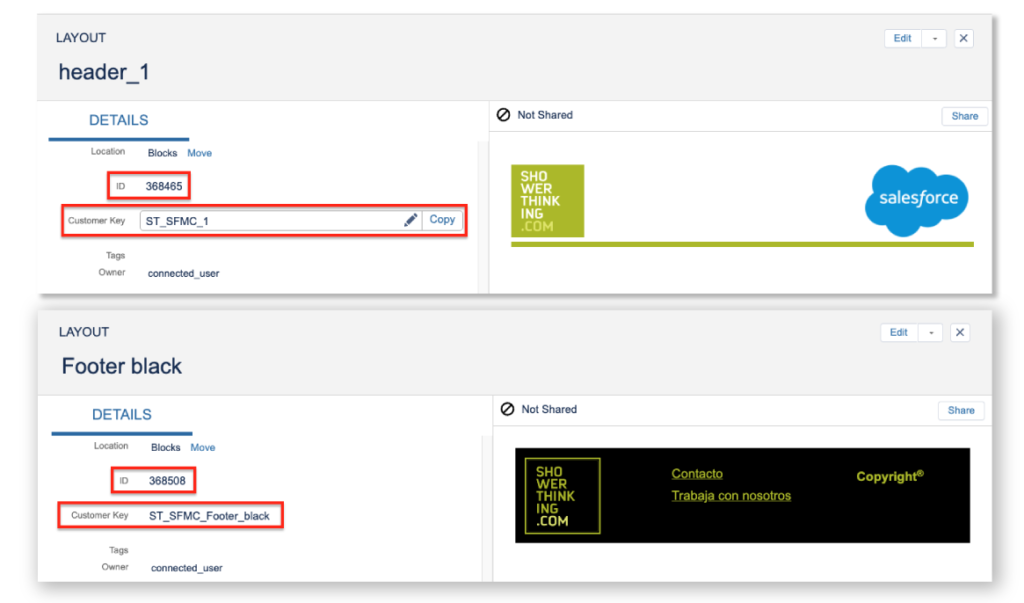
The indexing of content in our emails is done through AMPscript. To do this, we can use the string %%=ContentBlockbyId(“xxxxxx”)=%%, which uses the 6-digit numeric identifier that SFMC sets by default, or reference the block using %%=ContentBlockByKey(“custom_name_header”)=%%, which allows us to set a custom key. This second method is more convenient because we can easily identify the indexed block by the name of our choice instead of the default random number of the Block ID.

Content ID. Customer Key.

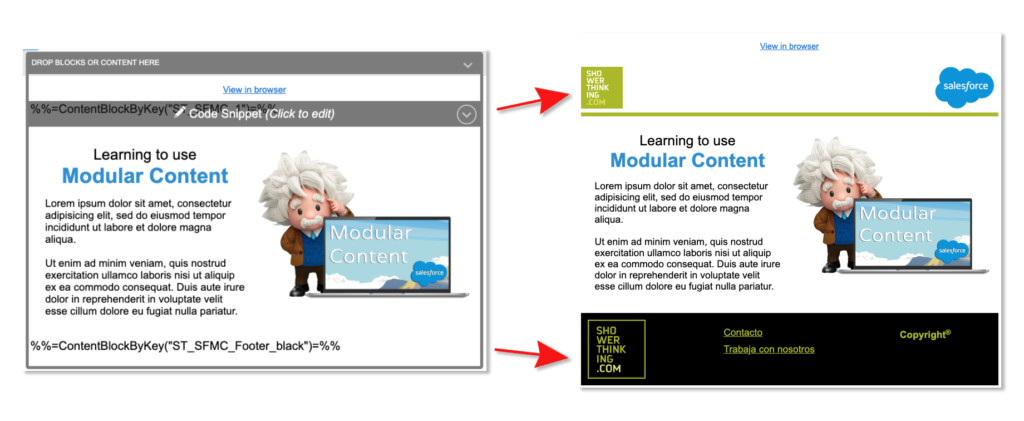
We will use the convenient drag-and-drop system for creating emails in SFMC and we will add a code snippet inside our layout and insert the AMPscript mentioned above.

We will be able to see the final result in the Preview and Test screen, although it is always convenient to launch a test to check that our content renders properly in the different mail servers and screen sizes.

Render. Preview and Test.

Scalable Design

In addition, this system is compatible and combinable with other powerful Marketing Cloud tools, such as custom strings and dynamic content. For example, it is possible to include multiple blocks of modular content, which in turn contain custom strings, and use the dynamic content tool to render one or the other based on the conditions we set. In other words, a whole world of possibilities.

Modular design

In short, modular content allows us to develop scalable work processes: it shortens time by eliminating duplication of processes and significantly improves the efficiency of our work.

Want to learn more about this area? Visit these links:

Neuromarketing Keys in Salesforce Marketing Cloud

Neuromarketing Keys in Salesforce Marketing Cloud

Neuromarketing is a field of study that combines neuroscience with marketing. Its main objective is to use knowledge about the functioning of the human brain to design more effective and persuasive marketing strategies.

What are the keys to Neuromarketing?

In a constantly changing digital environment, it is imperative that marketing professionals stay up-to-date with best practices to optimize their strategies and effectively reach their audience. Cognitive science has dedicated decades to analyzing consumer behavior, revealing that a significant part of our purchase decisions are driven by emotions and unconscious reactions. Throughout this article you will discover the keys to Neuromarketing which can be incorporated into your SFMC strategy.

Tone and Voice of the Email

Interpersonal communication plays a fundamental role in shaping your brand’s perception in the digital marketing environment. Choosing the right tone and voice is essential to establish an emotional connection with your audience, reflect your brand’s values, and, most importantly, motivate users to take action.

There is no one-size-fits-all tone that is universally superior. The choice between a professional, emotional, friendly, approachable, or serious tone will depend on the outcome of prior benchmarking. Consistency over time is what truly matters.

Clarity

Behavioral science provides abundant evidence supporting the notion that humans have limitations in their attention span. Theories like Selective Attention, the Principle of Simplicity, and the well-known Information Processing Theory are just a few examples of this. Therefore, it is essential that our message clearly communicates our purpose from the very beginning. Providing more information than necessary will only overwhelm the recipient’s mind and lead to the rejection of the entire message.

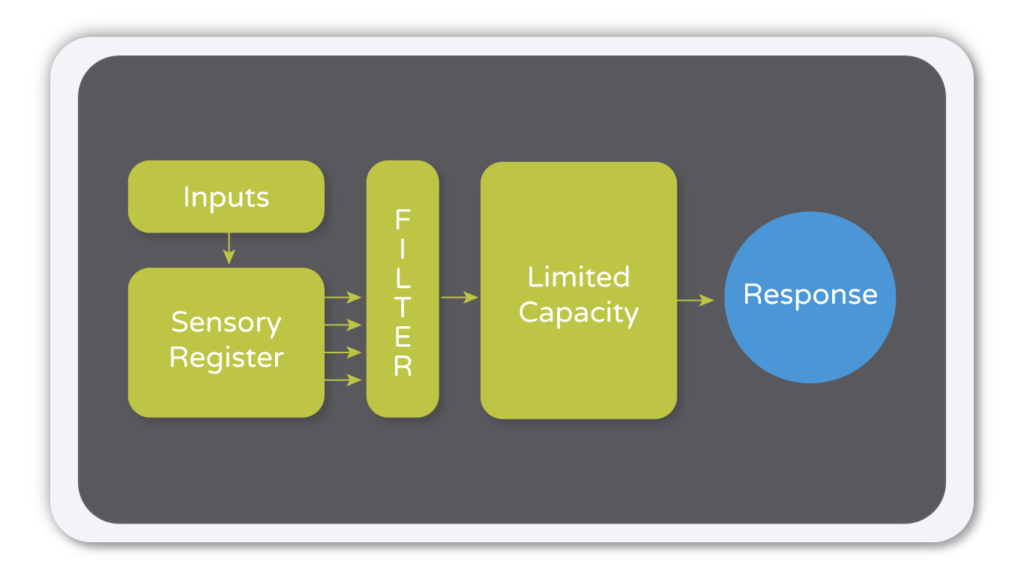
The Information Processing Theory determines that there is a limited capacity channel for external stimuli.

Broadbent Filter. ShowerThinking
Based on the Broadbent Filter Model.

Subject Line

The subject line of an email plays a crucial role as it is the gateway to our content. Its relevance should not be underestimated. The psychological theory of Primacy and Recency argues that people tend to remember the first and last impressions of their experiences more easily. With science on our side, we can harness this powerful notion and not miss the opportunity to create a lasting impression. 

  • Generate Curiosity
  • Use Urgency
  • Highlight the Main Benefit
  • Personalize and Segment

Colors

Each color has the power to evoke unique emotions and associations. Therefore, it is essential to strategically leverage this knowledge when selecting the color palette for your email campaign. When you maintain consistency in color choices across all your messages, a strong visual connection is established, strengthening your brand’s memory and fostering customer loyalty. This translates into a significant increase in open rates and greater interaction with the content you share, thanks to neuromarketing.

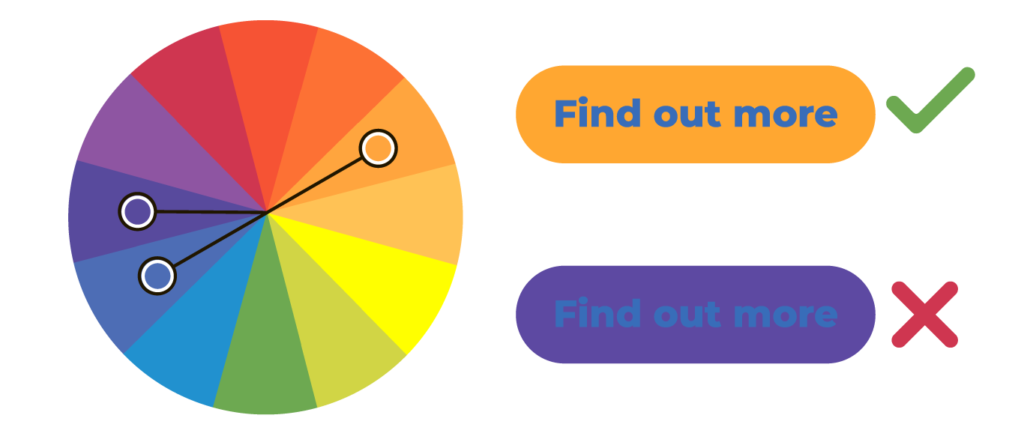
Apply the principles of color psychology and the color wheel effectively to avoid basic contrast errors.

colors

Color wheel for color contrast.

Mobile Friendly

Over 75% of users who receive our emails do so on mobile devices, so optimization for these devices should be a basic practice. The experience on these devices applies Gestalt principles. For example, ensure that elements are well-spaced for all screen widths and organized in accordance with the principles of Gestalt proximity and continuity.

Accessibility

In the realm of digital marketing, accessibility is not optional. This underscores the essential role of front-end developers, who not only shape the visual aspect of content but also ensure its accessibility regardless of the device or access method used. In addition, quality filters constantly seek out these accessibility gaps, such as the lack of alternative text in images or the minimum size in a CTA.

In this sense, A/B testing emerges as an invaluable tool for understanding and adapting to audience desires. The ability to experiment with different approaches allows us to discover what truly excites and engages our recipients.

In essence, always entrust your marketing campaigns to trained experts because, at the heart of effective marketing, you will always find the science of human behavior. This understanding is key to achieving outstanding results and establishing authentic connections with your audience.

Would you like to learn more about this field? Here are some links to visit:

Fields Validation: forms on Cloud Pages Marketing Cloud

Field Validation on Cloud Pages Forms in SFMC

Marketing Cloud provides a wide range of tools for form creation, but validating fields on Cloud Pages forms can seem like a challenge. In this post, we will explain how to best approach it.

How to achieve field validation on forms?

Field validation on forms is the process of verifying that the information entered in the fields is valid and meets certain predefined rules and criteria. Adjust the validation options according to your needs.

There are different types of validation in SFMC:

Validation of required fields

These are fields that must be filled out before a form can be submitted. If any required field is omitted, an error message will be displayed and the form submission will remain unavailable until all required fields are completed.

See the Pen Validation of required fields by Angela (@amoren03) on CodePen.

Email validation

This is another common example of email validation. In this case, JavaScript checks if the provided email address is valid and has the correct format.

See the Pen Email validation by Angela (@amoren03) on CodePen.

Field length validation

This will check whether the entered text is within the maximum or minimum length ranges. In this example, a minimum length of 10 characters has been specified. The JavaScript can be customized accordingly.

See the Pen Field length validation by Angela (@amoren03) on CodePen.

Phone number format validation

This is important to ensure that phone numbers are valid. If a user tries to enter a phone number that does not comply with the established format, an error message will be displayed.

In the following example, a number is requested in the format “123-456-7890”. You can customize it according to country specifications by changing the following code: /^\d{3}-\d{3}-\d{4}$/

Option selection validation

In this case, there is a verification to confirm that the user has selected a valid option.

See the Pen Option selection validation by Angela (@amoren03) on CodePen.

Validation of selecting at least one checkbox.

It is used to verify that at least one of the checkboxes has been checked, ensuring that the necessary information is provided.

Date of birth validation

This serves a dual purpose. A valid date must be entered, and it must match that of a person who is of legal age. You can customize it if you want another age limit or remove this restriction through JavaScript.

See the Pen Date of birth validation by Angela (@amoren03) on CodePen.

In summary, field validation on Marketing Cloud forms is an effective way to ensure that users enter accurate and complete information. By applying field validation, you can improve the quality of the data you collect and reduce the amount of manual corrections and updates you need to make later on.

Would you like to know more about field validation on SFMC forms? Visit these links:

Meet Marketing Cloud Intelligence by Datorama

Marketing Cloud Datorama
Salesforce Logo

Decades are passing by in the so-called information age and the exponential growth of data generated on a daily basis is relentless; digital networks have long since consolidated their importance in daily life. In this scenario, the possibilities for Marketing Intelligence are enormous and it is almost a cliché to say that empirical marketing based on data cannot be left aside.

Managing the massive amounts of data that modern businesses have to deal with can be costly and complex. This is where Salesforce’s Marketing Cloud Intelligence platform (Datorama) comes in. Created in 2012, it has become increasingly integrated into the Salesforce ecosystem. It serves as a meeting point for all Digital Marketing solutions. It makes it possible to unify data from various sources to create a centralized hub from which value can be extracted.

Marketing cloud intelligence

It is worth mentioning that Salesforce is in the process of rebranding some of its platforms, and Marketing Cloud Intelligence was until just recently known as Datorama.

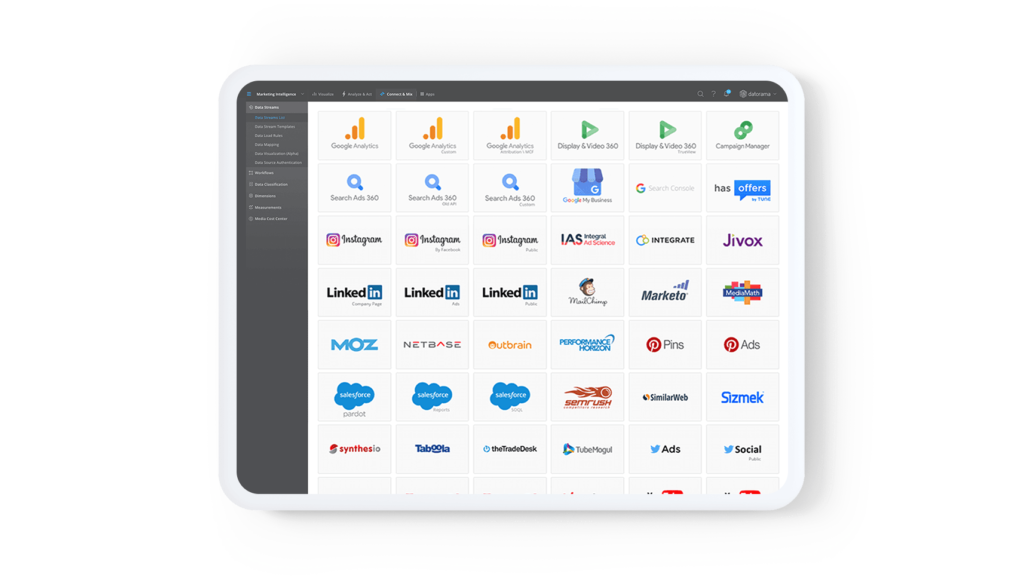
Through more than 120 APIs – or connectors – for the most relevant platforms and databases of the moment, data can quickly and efficiently be integrated in order to start analyzing and extracting knowledge. It does not forget about users who have data from other sources as it also has generic connectors, thus facilitating data ingestion for practically any case.

Centralize your data

Marketing Cloud Intelligence (Datorama) is focused on digital marketing, and is designed to work with relevant data from the industry. It therefore comes equipped with tools that facilitate data harmonization, to create a cohesive, logical and useful dataset. All this leads to the optimization of data management and study of KPIs.

It also has integration with Salesforce’s artificial intelligence – Einstein – which can look for otherwise hard-to-see patterns and provide possible solutions by leveraging the latest advances in machine learning and AI.

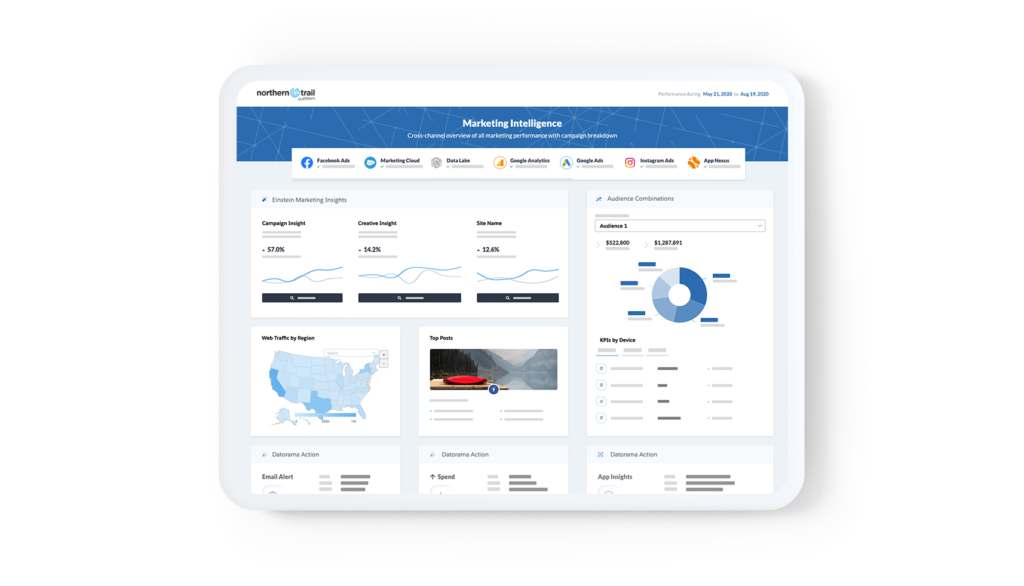
It is no surprise how popular dashboards are becoming in today’s landscape. They are the modern solution for efficient and intuitive data visualization, through a series of dynamic widgets that show summaries and key aspects of marketing campaigns in real time. This allows the visualization of concepts in a much simpler and more natural way than looking at a spreadsheet. Marketing Cloud Intelligence (Datorama) makes it easy to create these dashboards with the data that has been ingested. Through an intuitive interface it gives a lot of flexibility to create solutions that are tailored to the client’s specific needs.

DTR - Empower every role

There is also the Marketplace: A repository full of tools and applications to further customize the experience. You will be able to download the apps you want in a matter of seconds and with immediate integration to the platform, with just a few clicks of the mouse.

Summary of Key Concepts

  • Single Platform

Eliminates the challenge of coordinating multiple Analytics platforms.

  • Continuous Updates

Reports are constantly updated without requiring a high level of effort.

  • Data Visualization

Organized information that facilitates the visualization of data in dashboards.

  • Data Traceability

Campaign tracking requires analyzing the data in terms of the steps that users record across different digital assets.

  • Ease of Implementation

It does not require a traditional integration project, standard APIs facilitate this process.

  • Specialized Tool

Specialized in marketing intelligence for multichannel activities.

All this means that Marketing Cloud Intelligence (Datorama) delivers a reduction in marketing costs as well as time spent managing and interpreting data. It provides more time for critical thinking, decision-making based on the analysis of this data and attaining business goals.

If you are looking for a modern solution to treat data and extract knowledge and value, this is a great option. It has Marketing Intelligence solutions for all marketers, regardless of their sector. It centralizes your data and supports your decision making, optimizes your marketing campaigns, automates various labor-intensive processes and helps with data-driven decisions.

At Showerthinking, as a Salesforce Registered Consulting Partner, we have been working with Marketing Cloud Intelligence (Datorama) for many years. The evolution of digital marketing brings with it more complex solutions and technologies, and we are proud to have successfully implemented solutions in Datorama for several pharmaceutical companies.

Here is a link to a webinar held in 2021, in which we have a deep dive into the opportunities that Marketing Cloud Intelligence (Datorama) offers pharma companies in order to understand how healthcare professionals behave across multiple channels using a single source of information. Allowing a quick and efficient analysis of the data.

Auto-Suppression Lists in Marketing Cloud

Whenever we work with databases, we might encounter numerous emails to which we do not wish to or cannot send communications to all the email addresses registered. The marketing teams need to filter and avoid that these specific email addresses receive any Marketing Cloud Marketing Cloud communications.. A best practice in these cases could be to add them to an Auto-Suppression List.

In this article we will try to explain what it consists of, what they are used for, how to create them and manage these Auto-Suppression Lists within the Marketing Cloud tool.

How does an auto-suppression list work?

An Auto-Suppression Lists acts like a “do not contact list”, meaning that this list of email addresses will not be contacted. The email addresses that are usually added to these lists are addresses with a high spam history, addresses that have chosen to be unsubscribed to provider commercial communications or previous advertisers, competitors’ addresses, clients who have cancelled their activity with the brand… In short: all the contacts which we might have and desire to keep in our database but which we cannot or do not want to impact via an email marketing campaign.

We can create Auto-Suppression Lists from the administrator screen in Email Studio. once created, we can add all the addresses which we do not wish to contact with our Salesforce Marketing Cloud tool.
The Auto-Suppression List do not need to be selected by the user within each sending flow, as they filter the contacts to whom we do not want to send communications automatically and at the general level of the whole tool.

How to create an auto-suppression list

In order to create our own auto-suppression list, we firstly need to access Email Studio and we click “Administrator”. once this has been selected, within “Send Management”, we need to select “Auto suppression configuration” and “Create”.
Once we have created this new list, we will add the name and description of this list in “Properties” and select the desired attributes.
The next step would be to complete the sending profiles in the “Assignment” section. There we will be able to select if we want to filter the addresses via the “sender profile” or “send classification” (“sender profile” refers to the profile of the sender and the “send classification” refers to whether the communication is commercial or transactional).
We can also assign our list to the whole organisation or to specific business units. In this way we can use different lists for each business unit.

All of these properties can be edited ex post via the administrator in Email Studio. One thing to keep in mind is that if we modify an auto-suppression list is that whichever changes we make, these will not be applied to triggered sends which are in a queue. Because of this, in case of wishing to edit an auto-suppression list, the recommended action is to delete the sends in the queue before saving the changes in the list, as subscribers who are in the queue will continue to receive the communication for which they are in the queue even if we include them in the auto-suppression list. Once the list has been updated, we will review and enable the triggers

How to add contacts to an auto-suppression list

Once we have determined a series of parameters, we will save our list and we will add in this list the desired contacts. This last step of adding contacts can be done manually via Email Studio. For this purpose, we will need to fill in the fields “email” and the date in which this is added in the registry. We will also be able to add any other personalized attribute which we wish to add to the list.
In the case of wishing to add various contacts at the same time, it is recommendable to do this automatically using an import activity in Automation Studio to save time and effort.

In conclusion, the Auto-Suppression List have become an almost indispensable tool to properly manage our contacts within Marketing Cloud and automatically delete those email addresses that we do not want to impact with our communications.
Learning to use them and integrating them into all the email marketing processes of our company will save us a lot of headaches and will streamline the tasks of our marketing department.

Salesforce Marketing Cloud Mobile Studio

Mobile Studio

Looking to create a true multichannel experience for your customers? Then you can’t miss the implementation of Marketing Cloud’s Mobile Studio in your campaigns, the tool that establishes a direct, personal and customizable communication with your customers through their mobile devices.

What device is the most used by people in their daily lives so far this century? Indeed, smartphones, and it’s the best way to reach your customers!

Mobile Studio is a basic tool for any omnichannel campaign and consists of three modules: MobilePush, GroupConnect and MobileConnect, which will allow us to reach our customers via SMS, push notifications and instant messaging.

Mobile Studio

MobileConnect: SMS

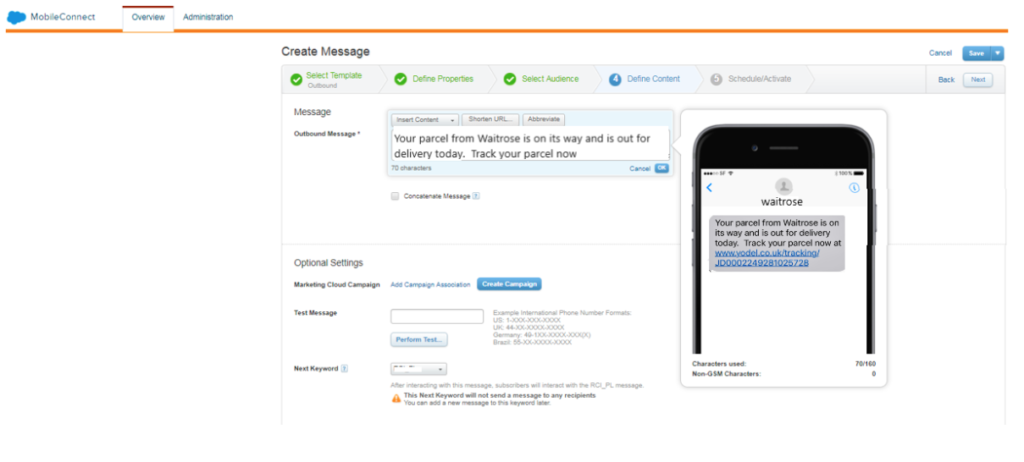
Allows you to create and send dynamic SMS in real time from Marketing Cloud. We can send different types of messages:

  • Outbound: promotional campaigns targeted to a predefined audience. These messages can be part of a campaign created in Journey Builder, as well as being integrated in a real-time automation in Automation Studio or configured as automatic sendings.
  • Text response: allow the user to respond with predefined keywords. This opens a feedback channel with our customers.
  • Surveys: give us the possibility to receive the opinion of our customers regarding their preferences.
  • Mobile Opt-in: you can invite your customers to be part of a campaign.
  • Info capture: through these messages we can ask for specific answers to our customers through text messages such as a membership number or a coupon code.
  • Email Opt-in: similar to Mobile Opt-in but, in this case, we can send an automatic email to the people invited.

MobileConnect & Journey Builder

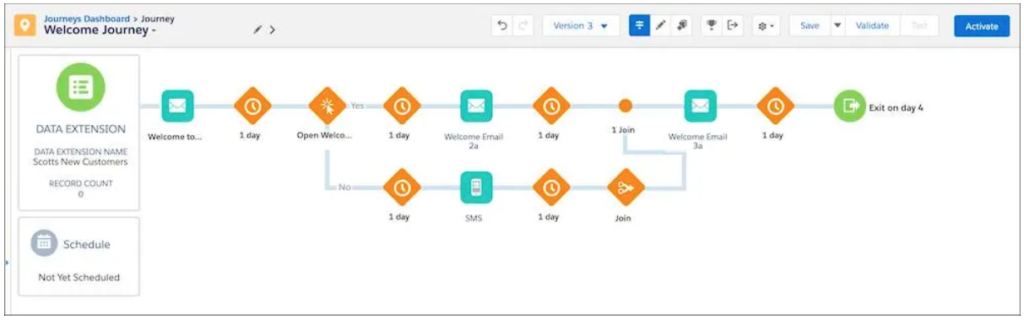
The integration of MobileConnect into Journey Builder is one of its strengths and offers many possibilities: more complex journeys that combine emailing with SMS.

This gives SMS many of the typical email functionalities, such as personalization through input attributes or click tracking. This means that we can include SMS in our journeys and implement interesting strategies such as SMS reengagement in case our potential customers do not open our email.

Mobile connect Journey Builder

MobilePush: Push notifications

This module offers the possibility of generating Push Notifications from applications developed in Android or iOS. We will be able to customize the notifications and segment the target audience. Just like MobileConnect, these messages can be integrated into campaigns launched with Journey Builder and Automation Studio.

Specifically, Mobile Push includes the possibility of using location as a trigger to launch automated messages through Geo-fence.

GroupConnect

GroupConnect is used to send messages through messaging applications. At the moment, it is possible to do so via LINE and Facebook Messenger. It also allows you to manage contact subscriptions and review messaging activities.

In summary, the automation and customization possibilities of this tool, together with its compatibility with other SFMC applications such as Journey builder and Automation Studio, make Mobile Studio a clear reference in its field.

Query Studio in Salesforce Marketing Cloud

Query studio salesforce

If you work in Marketing Cloud with Automation Studio and SQL Activities this article might be of interest to you. When working with Automation Studio to perform queries via SQL, the steps to get to see the result of the query are:

  1. Create a Data Extension with the required fields that you are going to select in your query .
  2. Create a SQL activity with the query.
  3. Create an automation to include a SQL Activity.
  4. Execute the automation.
  5. Consult the previously created Data
  6. Extension to visualize the results of the query.
  7. Check results .

If what you are trying to do is, for example, just to check or test data, this can be a bit tedious.

Here is something that will make your life easier.

What is Query Studio

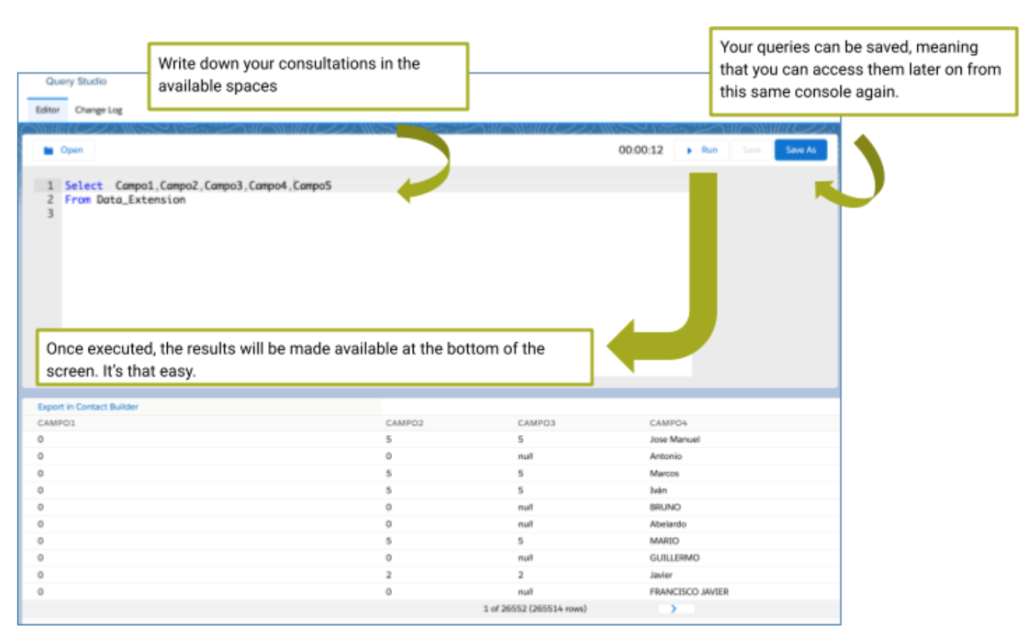
It is a free app from the Salesforce AppExchange, which allows you to execute queries in a fast manner, obtaining the results of the query in one console.

It’s that easy: you write your query, execute it and obtain the results.

Now let’s get down to the details.

How to obtain Query Studio

Here is the direct link to the Salesforce AppExchange for Query Studio:

Once we have installed the application. Steps to follow:

1. Install the application with an open session in Marketing Cloud.
2. Log out of the Marketing Cloud account
3. Log back into the account.
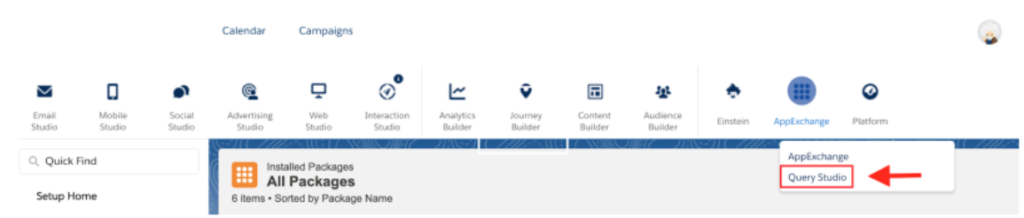
4. When browsing the tab AppExchange, you will be able to visualise the app.

appExchange Query

How to work with Query Studio

Once we have been able to access the application, you will see a console in which you can write down the query you need.
appExchange

Other characteristics from Query Studio

Besides the ease of use that Query Studio provides, it also has other characteristics which may be of much help to you.

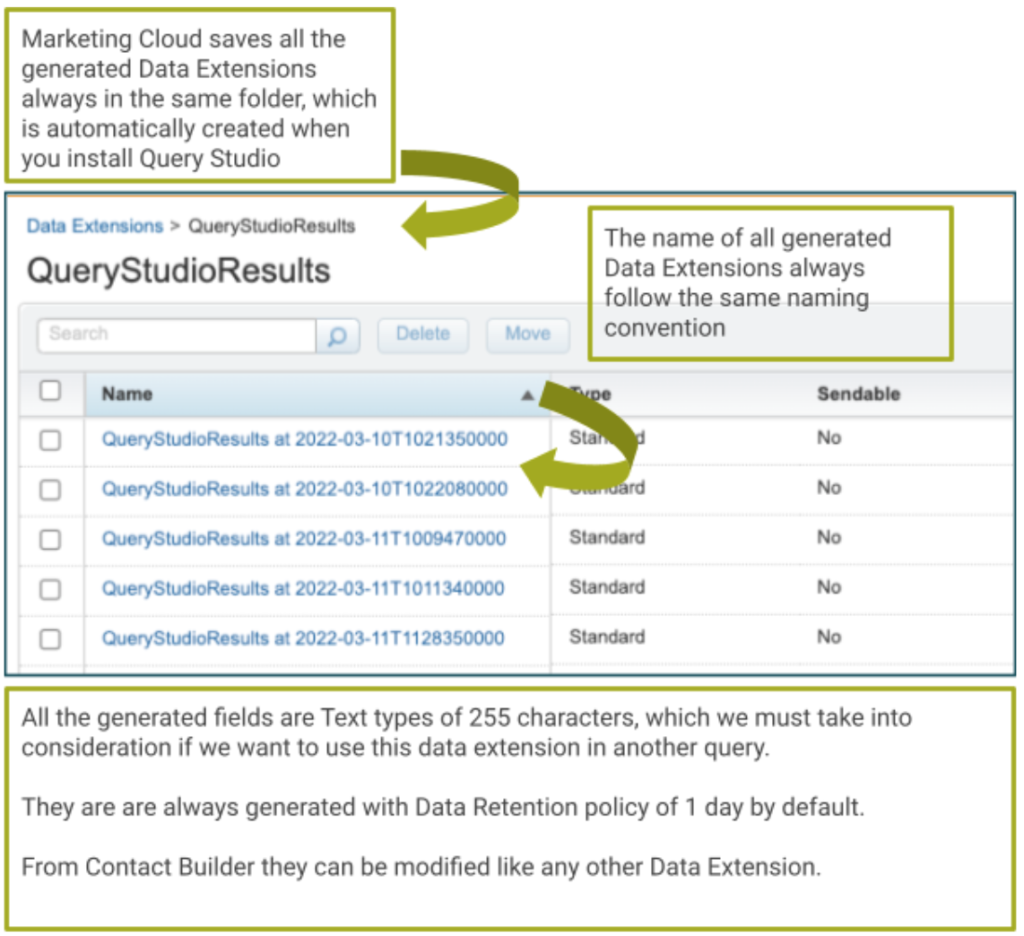
Generated Data Extensions

Query Studio saves the results in a Data Extension, which might be of use because this means that you could use it in other queries.

Generate Data extension
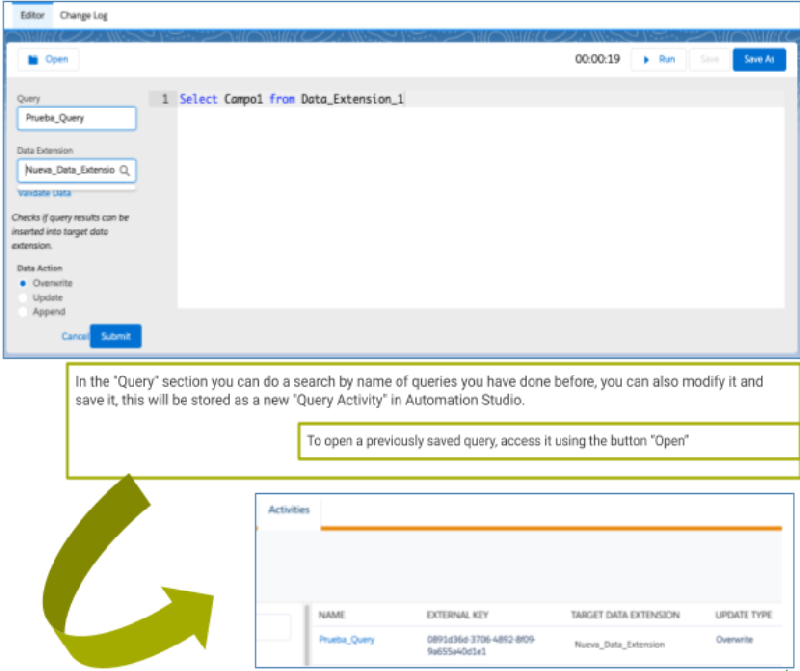
Besides the ease of use that Query Studio provides, it also has other characteristics which may be of much help to you.

Reuse queries

Console

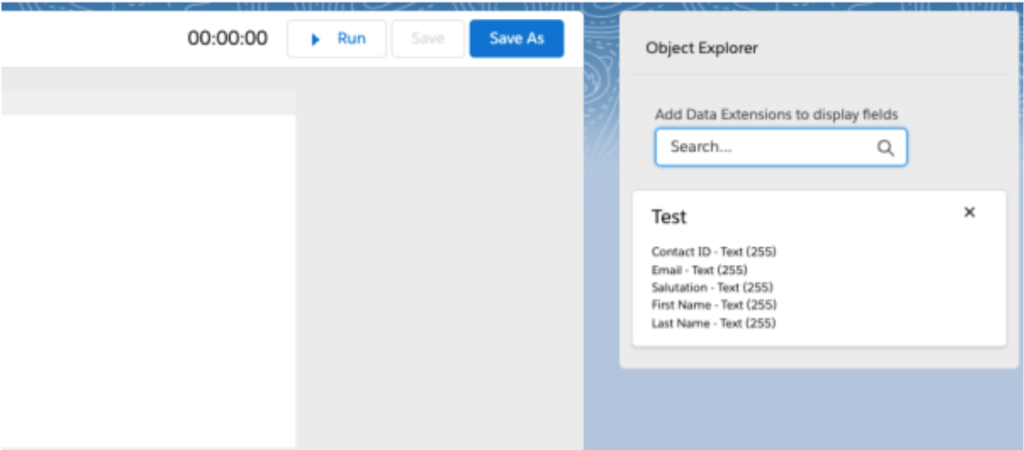
Object Explorer

Object Explorer

Search for Data Extension to visualise its structure.

Tricks

  • You can run the query without using the “run” button: if you use CTRL + Intro it will execute your query. Next to the run button you will be able to see how long it takes to deliver the results.
  • If you encounter the error “Time Out”, it is usually caused due to a caché problem. Try to execute it again.
  • If you have two or more tabs open in Query Studio with running queries, due to caché problems you might obtain unexpected results. I recommend only having one tab open at a time.
  • Finally, here is a video from Salesforce that includes information about Query Studio.